
io pro

How to Use iCON Pro Audio IO Pro: The Complete Guide to Virtual Mixing, Loopback & Plug-In Hosting

If you’ve ever wished your audio interface could do more — route system audio, host plug-ins outside your DAW, save vocal chains, or simplify podcasting and live streaming — IO Pro is where things get interesting.

IO Pro is not just software. It’s your virtual mixer, plug-in host, and audio control hub — designed specifically for iCON Pro Audio interfaces like the Harrison 32Ci Audio Interface.

Let’s go deep. In this guide, I’ll walk you through:

  • What IO Pro is

  • How to install it correctly

  • How to load and route plug-ins

  • How to save snapshots

  • How to use Loopback (Windows & Mac)

  • How to record system audio into your DAW

  • Real-world workflows for podcasting, vocals, streaming, and more

No fluff. Just practical power.

What Is IO Pro?

IO Pro is a virtual mixer and plug-in host for iCON Pro Audio interfaces.

It allows you to:

  • Route audio across your system

  • Host plug-ins using your computer’s processing power

  • Store complete plug-in chains as snapshots

  • Operate outside a DAW

  • Use it as a submixer during recording

  • Capture system audio using Loopback

Unlike interfaces with onboard DSP, interfaces like the 32Ci use host-based plug-ins — meaning your computer handles the processing. That gives you flexibility and access to all your favorite AU, VST, and VST3 plug-ins.

Think of IO Pro as the digital patchbay and control room that lives between your hardware and your DAW.

Installation: Do This First (Important)

Before installing IO Pro:

  1. Connect your 32Ci to your computer.

  2. Power it on.

  3. Make sure your computer is connected to the internet.

Why?
Because IO Pro installs the proper drivers during setup — and that requires an active connection.

Download IO Pro from the official iCON Pro Audio website. Once installed, you’re ready to build your signal flow.

Understanding the Interface

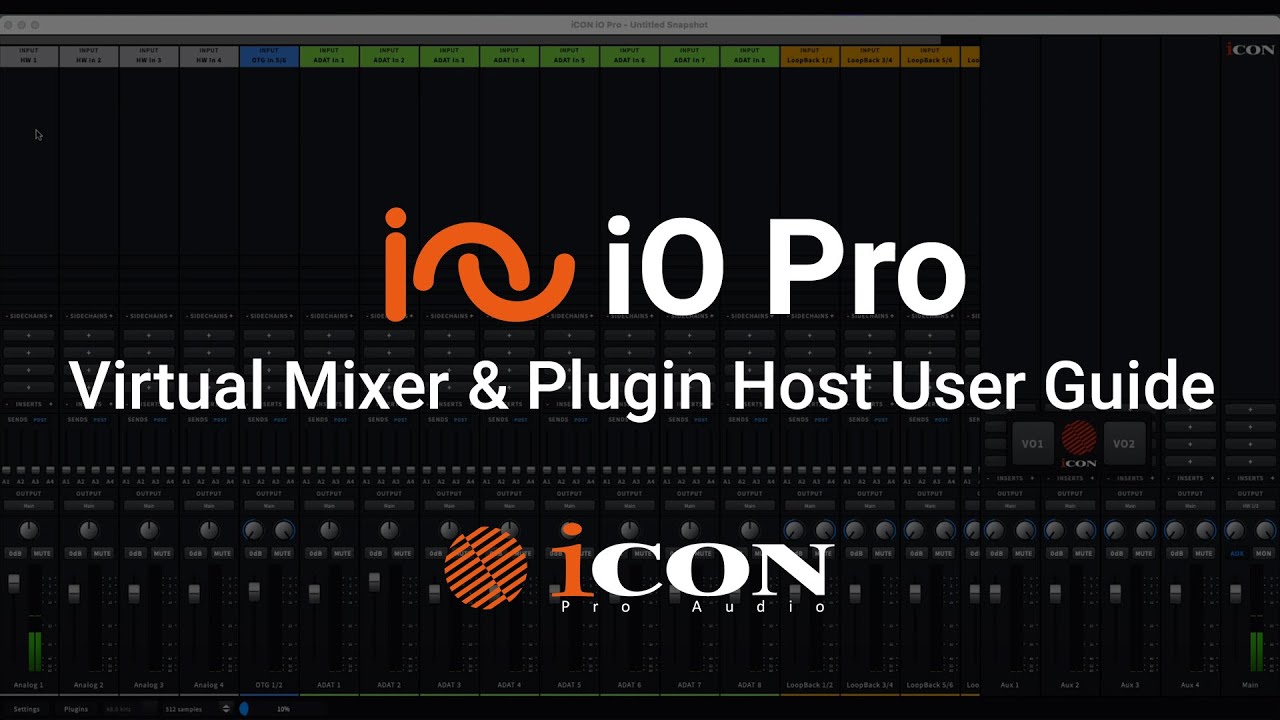
When you open IO Pro, you’ll see:

  • Hardware Inputs (your mic, instruments, etc.)

  • ADAT Inputs (if using ADAT expansion)

  • Loopback Channels (virtual system audio channels)

  • Channel strips with plug-in slots (+ icons)

Every channel behaves like a mini console strip.

And yes — you can fully customize the routing.


Loading Plug-Ins in IO Pro

Each channel strip includes a “+” icon. Click it and you can:

  • Load recently used plug-ins

  • Browse Audio Units (Mac)

  • Browse VST / VST3 plug-ins

  • Load included plug-ins like AVA Live

For example, the 32Ci includes AVA Live from Harrison — a powerful channel strip plug-in.

Once loaded, double-click to open the interface.

You can:

  • Load presets (e.g., Male Voice, Male Vocal)

  • Engage the Noise Gate / Expander

  • Adjust EQ

  • Dial in compression

  • Use a De-Esser

  • Change routing order by dragging modules

  • Add third-party plug-ins like reverb

Example Workflow: Voiceover Chain

  1. Load AVA Live.

  2. Select “Male Voice” preset.

  3. Engage the Gate to control room noise.

  4. Fine-tune EQ and compression.

  5. Adjust De-Esser for sibilance control.

Clean. Controlled. Professional.

Example Workflow: Vocal Production Chain

  1. Switch preset to “Male Vocal.”

  2. Add third-party reverb (e.g., Valhalla).

  3. Adjust routing order if needed.

  4. Save as snapshot.

Now you’ve built a vocal chain ready for recording.


Custom Routing: Move Your Modules

One powerful feature inside IO Pro is routing flexibility.

Your signal chain might look like:

Filters → Gate → EQ → Compressor → De-Esser

But you’re not locked into that order.

You can click and drag modules to experiment.
Want compression before EQ? Done.
Gate after EQ? No problem.

This is studio-console flexibility without touching a patch cable.


Snapshots: Instant Recall for Different Sessions

This is where IO Pro shines.

Once you’ve built your ideal plug-in chain:

  • Go to File → Save Snapshot

  • Name it (e.g., “Male VO” or “Podcast Host”)

  • Recall it instantly later

Perfect for:

  • Podcast sessions

  • Different vocalists

  • Songwriting sessions

  • Livestream presets

  • Client recall

It’s like saving your studio’s brain.

Loopback: Capture System Audio Like a Pro

Now let’s talk about one of the most powerful features in IO Pro: Loopback.

What Is Loopback?

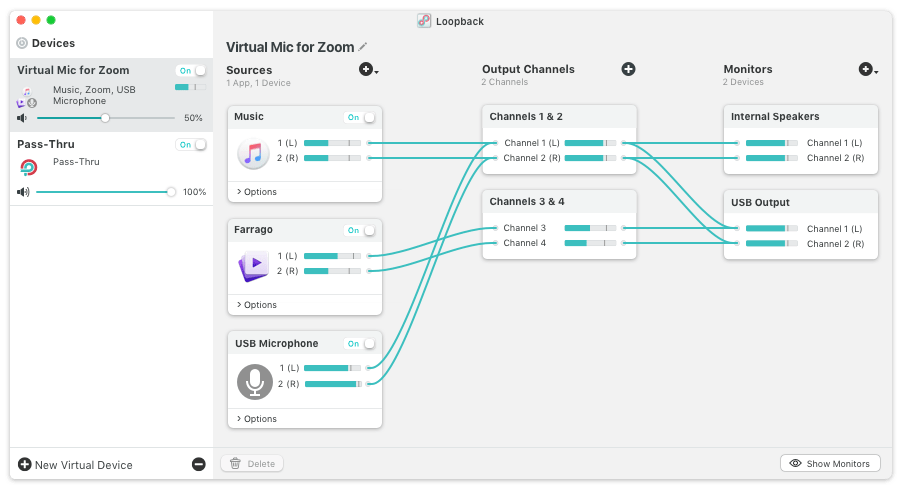
Loopback is a virtual audio channel that routes system audio back into IO Pro and your DAW.

On:

  • Windows → It appears as an ASIO channel

  • Mac → It appears as a virtual channel

It allows you to record:

  • YouTube audio

  • Zoom calls

  • Skype interviews

  • Karaoke backing tracks

  • Any web-based audio

And you can process it with plug-ins before recording.

That’s huge.

How to Set Up Loopback

https://www.aalto.fi/sites/default/files/styles/medium/public/2020-09/Windows10%20Sound%20settings.PNG?itok=KjWPTYC0
https://assets.techrepublic.com/uploads/2016/10/macsoundeckel092016.jpg
https://rogueamoeba.com/loopback/images/tour-full.png
4

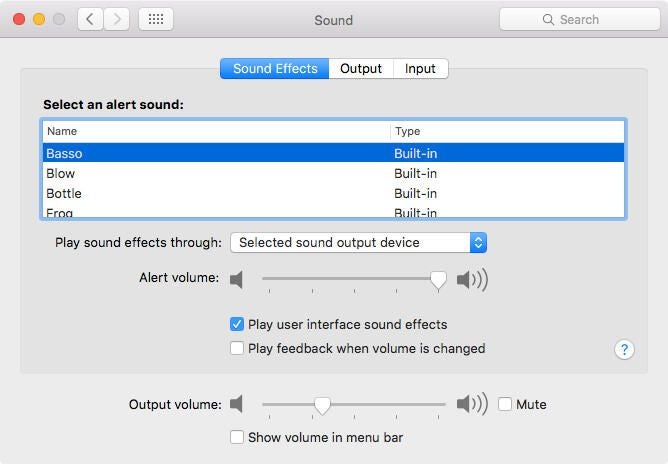
Step 1: Set Your Computer Output

Go to your computer’s sound settings.

Select:

Pro Driver Loopback

(This driver installs with IO Pro.)


Step 2: Play Audio from a Source

Open YouTube, Zoom, or any application.

You’ll see signal appear on:

  • Loopback 1–2

  • Loopback 3–4

  • Loopback 5–6
    (Depending on routing)


Step 3: Route Into Your DAW

Example using Ableton Live:

  1. Open Preferences.

  2. Set Output Device → Your iCON interface.

  3. Set Input Device → Pro Driver.

  4. Arm a track and set input to Loopback channel.

  5. Hit record.

Done.

You are now recording system audio directly into your DAW.


Real-World Use Cases

🎙 Podcasting

  • Physical inputs → Local microphones

  • Loopback 1–2 → Zoom guest

  • Loopback 3–4 → YouTube clip playback

Everything mixed in IO Pro.
Everything recordable in your DAW.


🎤 Recording Vocals Over YouTube Karaoke

  • Route YouTube backing track via Loopback

  • Add reverb or EQ in IO Pro

  • Record vocals through hardware input

  • Capture both into your DAW


🎥 Live Streaming

  • Mic on hardware input

  • Background music via Loopback

  • Add plug-in processing in IO Pro

  • Send polished mix to streaming software


Why IO Pro Is More Than a Utility

IO Pro extends your interface into something much more powerful:

  • Virtual mixer

  • Plug-in host

  • Submixer

  • Routing matrix

  • Snapshot manager

  • Loopback engine

When paired with the 32Ci, you’re combining analog heritage with modern routing flexibility.

And yes — you can even stream directly from your phone using the OTG port on the 32Ci.


Practical Takeaways

If you remember nothing else, remember this:

  • IO Pro runs outside your DAW.

  • It hosts AU, VST, and VST3 plug-ins.

  • It saves complete signal chains as snapshots.

  • It allows custom routing.

  • Loopback captures system audio.

  • You can process system audio before recording it.

  • It’s perfect for podcasting, vocal production, songwriting, and live streaming.

Final Thoughts: Build Your Audio Ecosystem

IO Pro turns your interface into a creative command center.

Instead of working around limitations, you design your signal flow:

  • Voiceover chain saved and ready.

  • Podcast routing pre-built.

  • Streaming setup one click away.

  • Loopback configured for remote guests.

  • Plug-in chains instantly recallable.

It’s not just about recording.

It’s about control.

And when you pair IO Pro with the Harrison 32Ci Audio Interface, you’re not just tracking audio — you’re shaping it.

If you’re serious about workflow, speed, and creative flexibility, IO Pro isn’t optional.

It’s essential.

Icon Pro Audio
Privacy Overview

This website uses cookies so that we can provide you with the best user experience possible. Cookie information is stored in your browser and performs functions such as recognising you when you return to our website and helping our team to understand which sections of the website you find most interesting and useful.