
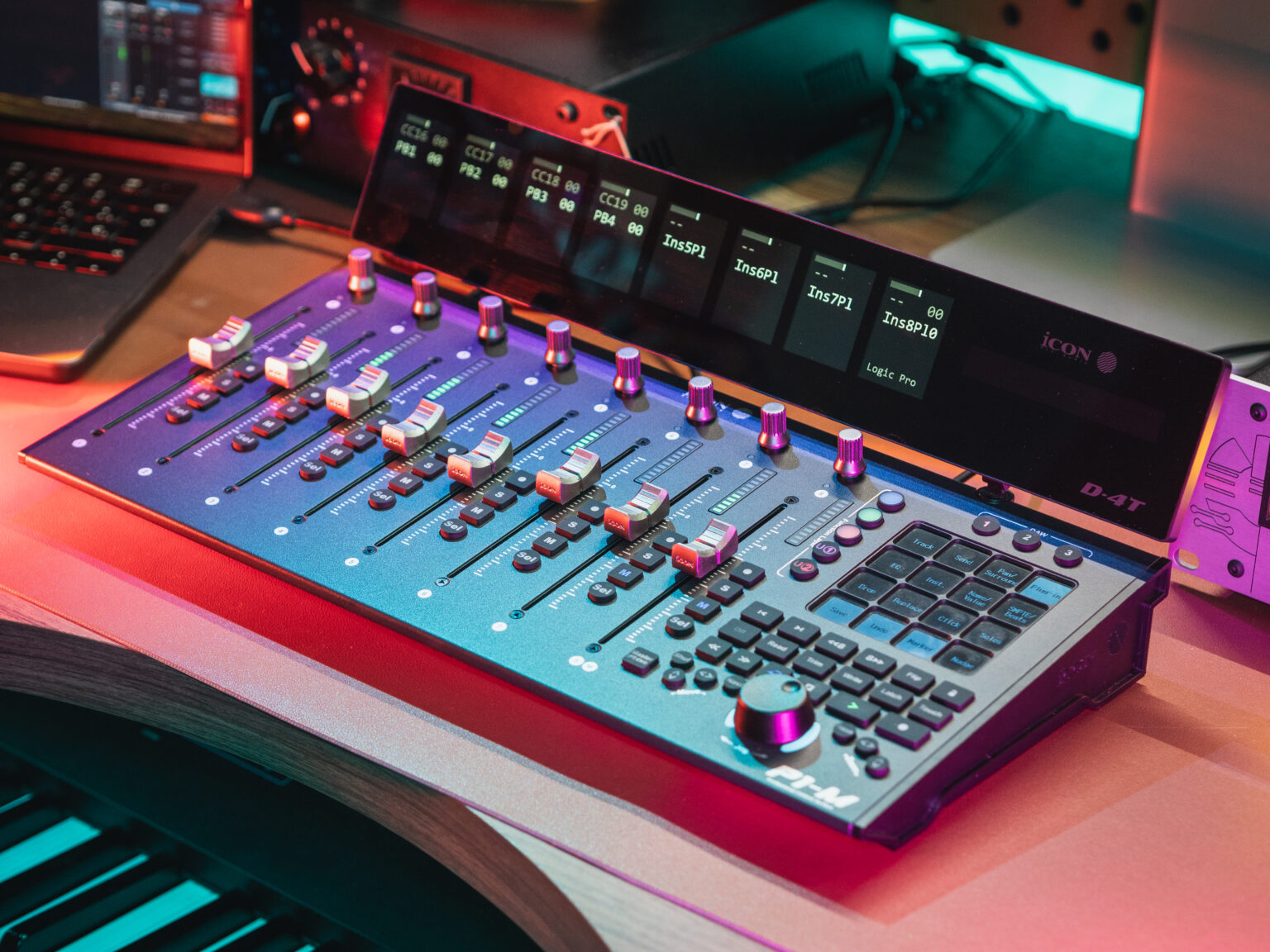
If you’re an FL Studio user, you know the power of speed. Whether you’re producing beats, mixing tracks, or performing live, your workflow thrives when your hands stay on the controls and your eyes stay on the music. That’s where the iCON P1-M DAW Controller comes in.
This powerful, motorized control surface brings the tactile experience of a professional studio mixer to your DAW setup — letting you record, mix, and automate faster than ever. Today, we’ll walk through the basic setup of the P1-M with FL Studio, and then we’ll cover how to add the P1-X DAW Control Extender (and other compatible iCON expanders) for even more channels and control.
Connect your P1-M to your computer using the included USB cable.
Power it on and allow your system to recognize the device.
Windows or macOS may install drivers automatically. Once complete, the P1-M is ready to be assigned in FL Studio.
Open FL Studio and go to Options > MIDI Settings.
In the Input section, locate your P1-M controller. It should appear as a MIDI device.
Enable the device by clicking the Enable switch.
Under the Controller type dropdown, select Mackie Control Universal (MCU).
Repeat this step for the Output section so FL Studio can send feedback (such as fader movement) to the P1-M.
Now, your transport controls, motorized faders, and rotary encoders will all communicate seamlessly with FL Studio.
Once your setup is complete, try a few quick tests:
Move a fader on the P1-M — you should see the corresponding channel fader move in FL Studio.
Press Play, Stop, or Record to test transport control.
Turn an encoder to adjust panning or plugin parameters.
If everything responds correctly, you’re ready to mix!
Need more physical faders for large sessions? The P1-X DAW Control Extender is designed to expand your P1-M system effortlessly.
NOTE: This video applies to all iCON Pro Audio DAW Controller Extenders including the V1-X, P1-X, QCon Pro XS, and QCon EX G2. The video below features the P1-X DAW Control Expander.
Connect the P1-X to your computer via USB or through the P1-M’s expansion port (depending on your setup).
Power on the unit.
Open FL Studio > Options > MIDI Settings.
Under Input and Output, enable the P1-X device.
Assign the Controller type as Mackie Control Universal.
If you have multiple controllers, set each device to control a different bank of channels:
P1-M: Channels 1–8
P1-X: Channels 9–16 (and so on, for additional expanders)
Once assigned, moving any fader or encoder on your P1-X will correspond directly to the assigned channels in FL Studio, creating a seamless mixing surface across multiple units.
FL Studio’s flexibility allows you to map controls, customize channel assignments, and even script specific behaviors. If you’re deep into workflow optimization, experiment with FL Studio’s Controller Scripting to fine-tune how your P1-M and P1-X interact with your projects. Youtuber X-Fada Studios created a fantastic custom script that you can check out below.
That’s it — your iCON P1-M and P1-X setup with FL Studio is complete. With hands-on control over your mix, automation, and plugins, you’ll experience music production the way it was meant to be: intuitive, expressive, and fun.
Stay tuned for more setup guides and creative workflows for iCON Pro Audio gear.
Ready to expand your studio? Learn more about the iCON P1-M and P1-X on our website.
Subscribe to our mailing list to stay up to date with the latest product news, updates, and information.