IconProAudio's WM3.1 & WM3.2 Wireless Mic System Overview and Setup Guide
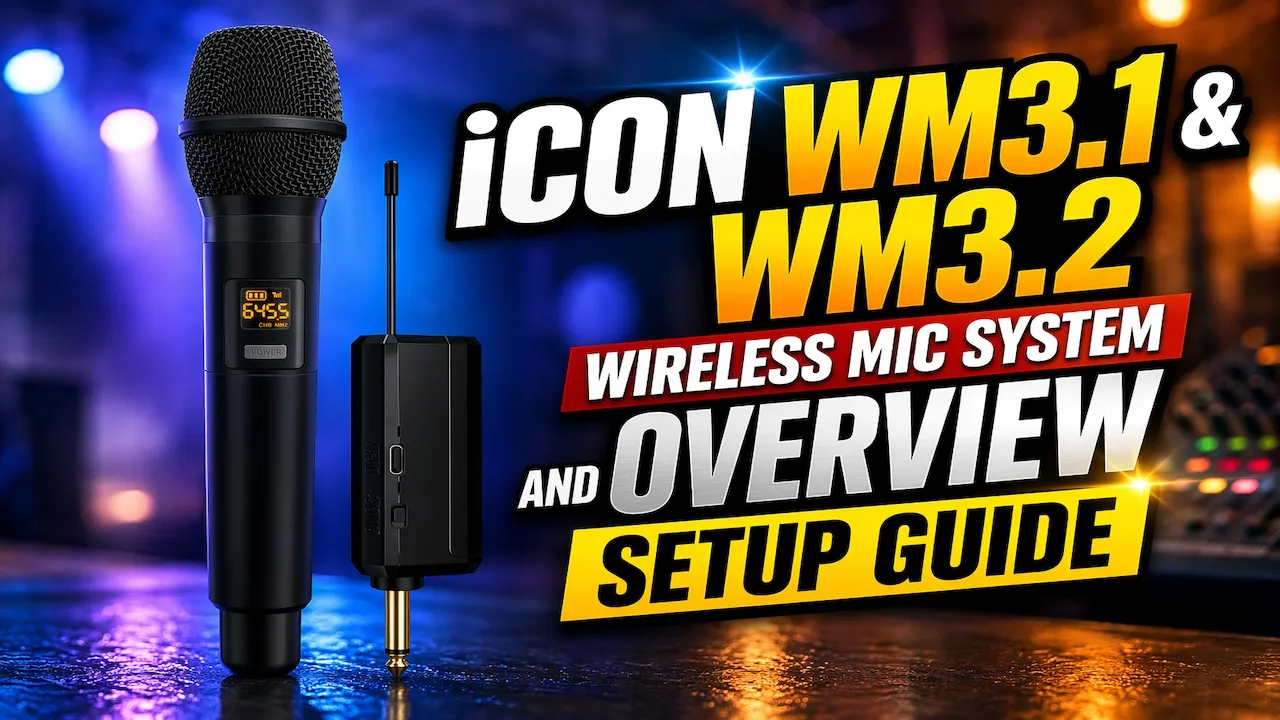
Wireless microphones should make your performance easier, not create more things to worry about.
Whether you’re leading a live show, speaking at an event, recording content, hosting a worship service, or managing a presentation, your focus should stay on your message, not on cables, battery anxiety, or setup confusion.
That is exactly why the iCON WM3 series was built.
The iCON WM3.1 and WM3.2 Wireless Microphone Systems are designed to deliver clear, stable UHF wireless audio with fast setup, rechargeable convenience, and dependable performance. They remove unnecessary complexity so creators, presenters, and performers can move freely and sound confident.
In this guide, we’ll walk through everything you need to know, from charging and setup to pairing, gain staging, channel management, and performance tips, so you can get the best results from your system every time.
Understanding the Difference Between WM3.1 and WM3.2
The WM3 series comes in two versions, and choosing the right one depends entirely on how you work.
The WM3.1 is a single handheld wireless system. It includes one wireless microphone transmitter and one compact receiver. This setup is ideal for solo performers, presenters, pastors, wedding hosts, educators, and content creators who only need one microphone source.
The WM3.2 expands that flexibility by including two microphone transmitters that operate through the same receiver. This is perfect for interviews, dual presenters, worship teams, panel discussions, event hosting, and any environment where two voices need reliable wireless coverage without adding another receiver.
Both systems are built on the same foundation: portable UHF wireless performance, rechargeable operation, direct plug-in connectivity, and simple controls that make setup fast and dependable.
The difference is simply how many voices you need to support.
Before You Start: Fully Charge the System
Before using the WM3 system for the first time, fully charge both the microphone transmitters and the receiver.
Each device uses a rechargeable lithium battery and charges through a USB-C port, which makes charging simple whether you’re at home, in the studio, backstage, or preparing for an event.
A full charge typically takes around three hours.
Once fully charged, the microphone transmitters can operate for up to 10 hours, while the receiver provides up to 6 hours of continuous use. For most performances, services, meetings, and recording sessions, this gives you more than enough operating time without interruption.
When each unit powers on, the display shows battery level immediately. This allows you to confirm everything is ready before stepping on stage or starting your session.
Good preparation protects great performances. Starting with a full charge removes one more thing from your mental checklist.
Powering On and Automatic Pairing
One of the best parts of the WM3 system is how quickly it gets to work.
To begin, press and hold the power button on the receiver. Once the display activates, you’ll see important status information including battery level, channel number, and signal condition.
Next, power on the microphone transmitter by holding its power button. If you’re using the WM3.2 system, repeat the same step for the second microphone.
In most environments, the system will automatically pair as soon as both units are powered on.
The WM3 series uses UHF wireless transmission with up to 30 selectable channels, and in normal conditions, the transmitter and receiver will lock together automatically. You’ll see the matching channel number appear on both displays, along with a stable signal indicator showing the connection is active.
This means there is no complicated syncing process and no menu diving before a performance.
Power on, confirm the connection, and you are ready to go.
That kind of simplicity matters most when setup time is short and expectations are high.
Understanding UHF Channels and Avoiding Interference
Wireless audio environments are rarely empty.
Live venues, conferences, churches, schools, and event spaces often have multiple wireless systems operating at the same time. Other microphones, electronic equipment, and nearby devices can create interference that affects signal quality.
That is why the WM3 system includes up to 30 selectable UHF channels.
In most situations, the automatic pairing handles everything for you. But if you hear static, background noise, signal instability, or unwanted interference, changing channels is often the fastest solution.
To manually change channels, press the channel or frequency control on the microphone transmitter. This allows you to move through the available channels until you find a cleaner frequency.
Once you select a new channel, the receiver automatically follows and locks to the same channel. There is no separate syncing step required.
This is especially useful in busy production environments where multiple wireless systems are working at once.
A clean channel creates a clean performance.
Sometimes the best troubleshooting tool is simply choosing a quieter wireless lane.
Connecting the Receiver to Your Audio System
The WM3 receiver is designed for direct connection, which keeps setup fast and efficient.
It plugs directly into mixers, powered speakers, audio interfaces, and PA systems using its built-in 1/4-inch connector. This eliminates unnecessary adapters and helps reduce setup time, especially in live environments where speed matters.
Simply insert the receiver into a microphone input or line input depending on your system configuration.
Once connected, gradually raise the input gain on your mixer or audio interface while speaking into the microphone. Your goal is not maximum volume, it is clean, balanced signal strength.
You want your voice to sound strong and present without distortion, clipping, or harsh peaks.
This is where many wireless systems succeed or fail.
A great microphone can still sound poor if gain staging is wrong. Proper connection and level setting ensure the quality of the system actually reaches your audience.
Clear sound starts with a clean signal flow.
Setting Proper Gain for Professional Sound
Each WM3 microphone includes adjustable gain control on the transmitter, and this small feature makes a major difference in real-world performance.
Gain is not just about making things louder. It is about creating balance.
If microphone gain is too high, your voice can distort, clip, or sound harsh, especially for louder singers, energetic presenters, or performers working close to the microphone.
If gain is too low, your voice may sound weak, distant, or lost in the room, forcing your mixer to work harder than necessary.
The goal is stable, controlled output.
Louder voices often benefit from slightly reduced microphone gain. Softer speaking voices may need a small increase to maintain clarity and presence.
At the same time, your mixer or audio interface should be adjusted gradually so the overall signal feels natural and strong.
The best sound rarely comes from pushing everything louder. It comes from balance.
When gain is set correctly, your audience hears confidence, not correction.
Getting the Best Wireless Range and Performance
The WM3 system offers reliable wireless performance at distances up to 30 to 50 meters, which provides excellent flexibility for stages, event spaces, classrooms, and houses of worship.
But wireless performance depends on more than distance.
For the strongest signal, maintain a clear line of sight between the microphone and the receiver whenever possible. Large metal objects, walls, heavy equipment, and dense electronic setups can weaken signal strength by interrupting transmission.
This does not mean the system is failing, it simply means wireless signals, like sound itself, move best when the path stays open.
Placement matters.
If you notice unstable signal or sudden dropouts, look at the physical environment first before assuming there is a technical problem.
Often, moving the receiver slightly or removing an obstacle solves the issue immediately.
Wireless reliability is often about positioning, not replacing.
Better Microphone Technique Creates Better Audio
Even the best wireless system performs better when microphone technique is consistent.
Hold the microphone a few inches from your mouth to capture clear vocal tone and stable volume. Too far away, and your voice loses presence. Too close, and plosives or excessive volume can create harshness.
Avoid covering the microphone head with your hand. This can cause muffled sound, reduce clarity, and increase the chance of feedback.
As you move around a stage or room, try to keep the microphone pointed toward your mouth so your sound remains consistent for the audience.
This is especially important for presenters and performers who move naturally while speaking.
Good microphone technique is not about being rigid, it is about helping your voice stay clear without forcing your sound system to work harder.
Small habits create professional results.
Using Two Microphones with the WM3.2 System
The WM3.2 system is designed to keep dual-microphone setups simple.
Start by powering on both microphones and the receiver. Each microphone should be assigned to its own channel so the receiver can recognize and manage both signals correctly.
Once active, the receiver will identify both channels and deliver both microphone signals to your connected audio system.
Before your event begins, test each microphone individually. Confirm that each one is paired correctly, transmitting clearly, and producing stable signal without interference.
This is also the time to balance gain between both users.
If one speaker is naturally louder than the other, adjust microphone gain so both voices feel even and natural in the room. You want clarity and balance, not competition.
Whether it is an interview, worship team, live host pairing, or dual presentation, the goal is simple: both voices should feel equally present.
Professional audio is often invisible.
When it sounds effortless, that usually means it was set up correctly.
Solving Weak Audio, Noise, and Signal Problems
Most wireless microphone issues are not major failures, they are small setup details that can be corrected quickly.
If your sound feels weak, the issue is often gain balance rather than wireless performance. Many users instinctively raise the microphone gain too high, which can actually create distortion and unstable sound. A better approach is to slightly lower microphone gain at the transmitter and allow your mixer or interface to handle more of the amplification.
If you hear noise, static, or background interference, changing to another UHF channel is usually the fastest solution. Since the WM3 system offers up to 30 selectable channels, finding a cleaner frequency is quick and often restores stable audio immediately.
If signal drops completely, first check distance and physical obstacles. Moving closer to the receiver or removing objects blocking line of sight often solves the problem faster than changing settings.
And if the microphone does not power on at all, the most likely cause is simply a low battery charge. Recharge the unit fully before assuming there is a hardware issue.
Troubleshooting should feel calm, not stressful.
Most problems have simple solutions when you know where to look first.
Final Thoughts
The iCON WM3 Wireless Microphone System was built for creators who need freedom without unnecessary complexity.
Automatic pairing, rechargeable transmitters, up to 30 selectable UHF channels, long battery life, direct plug-in receiver design, and dependable wireless performance all work together to support one goal: helping you stay focused on the performance itself.
Whether you choose WM3.1 for single-mic simplicity or WM3.2 for dual-mic flexibility, both systems are designed to deliver professional results without slowing you down.
No cable limitations.
No complicated setup.
No distractions between your voice and your audience.
Just clear sound, reliable wireless performance, and the confidence to move naturally in any space.
Because great communication should never feel restricted.
Learn more at iCON Pro Audio.